
Free Image to VideoAI Generator
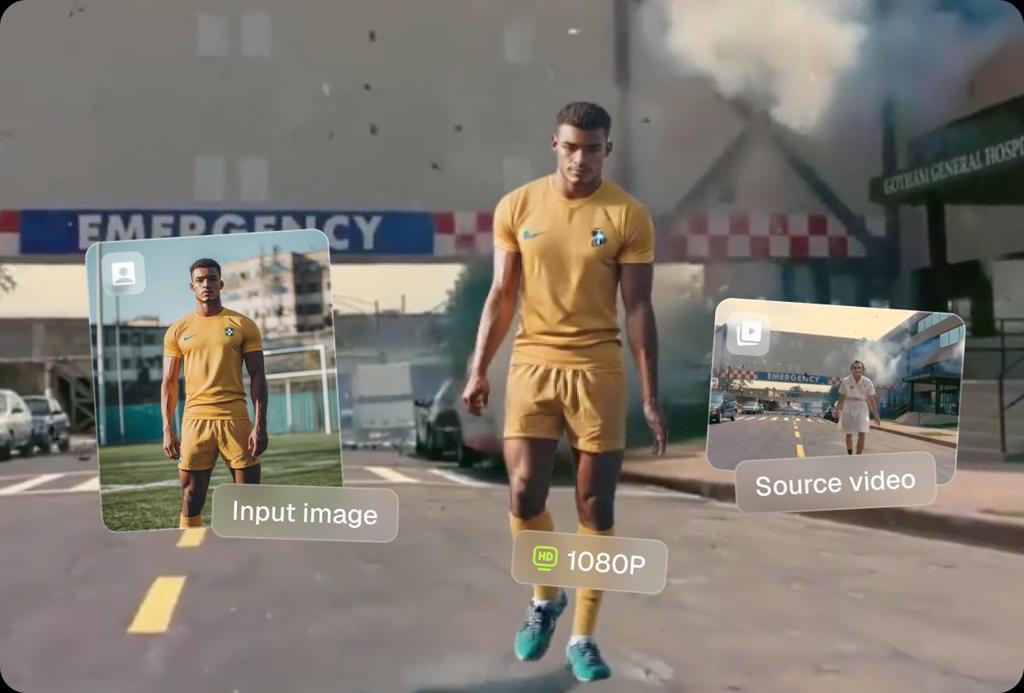
Turn your pictures into motion with our AI Image to Video Generator. Viggle makes it easy to create videos from any image — simply upload a photo, choose a motion template, or upload your own video as a motion reference. Compared to other AI video generation tools, you'll have full control over character's movements.
How To Turn Image Into Video With Viggle AI
Viggle uses advanced AI to map the motion from a video onto the character in your photo, creating a realistic animation. Simply upload an image, pick a motion template or upload your own clip, and the AI image to video generator will transform your picture into a moving video.
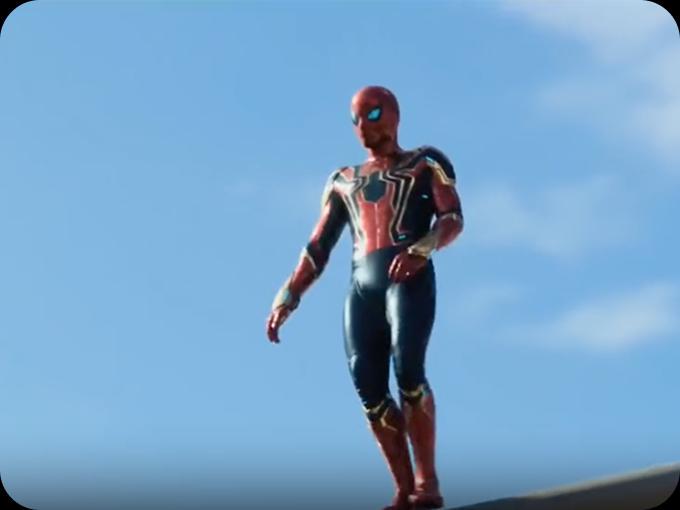
Upload a video
Go to 'Mix', choose a trending video template or upload your own motion clip.
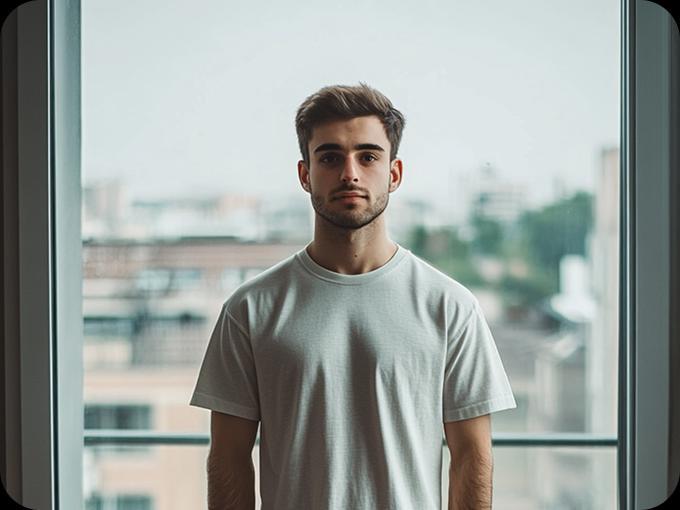
Upload an image
Choose any image you want to animate. It can be a selfie, a portrait, or even an illustration. Our AI picture to video generator works best with clear, high-quality photos.
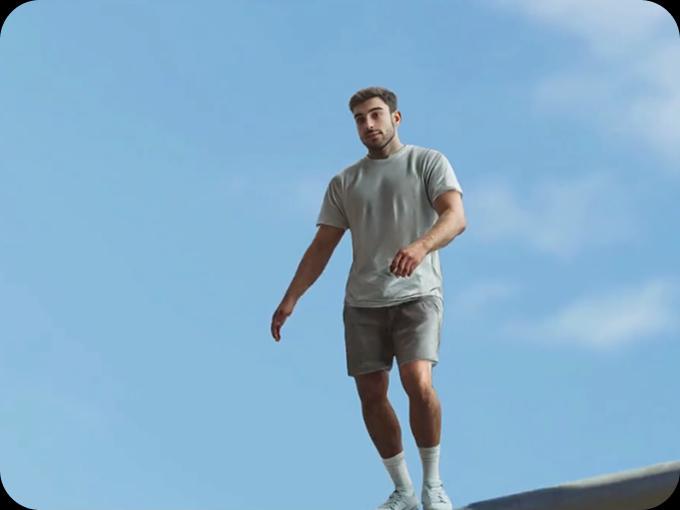
Get your video generated
Viggle generates a video with the character in your image doing the same motion as in the video/template in seconds.
Turn Your Image Into Video in Seconds
Pick a character, watch them move — then try it with your own image.
Want to use your own photo?
Create AI video from images quickly
Create AI generated video from photo, up to 1080p
Unlike other AI image to video generators, Viggle doesn't just animate your photo randomly — it maps real motion from a video onto your character. This gives you full control over how your photo and character moves, dances, or acts, resulting in lifelike clips.
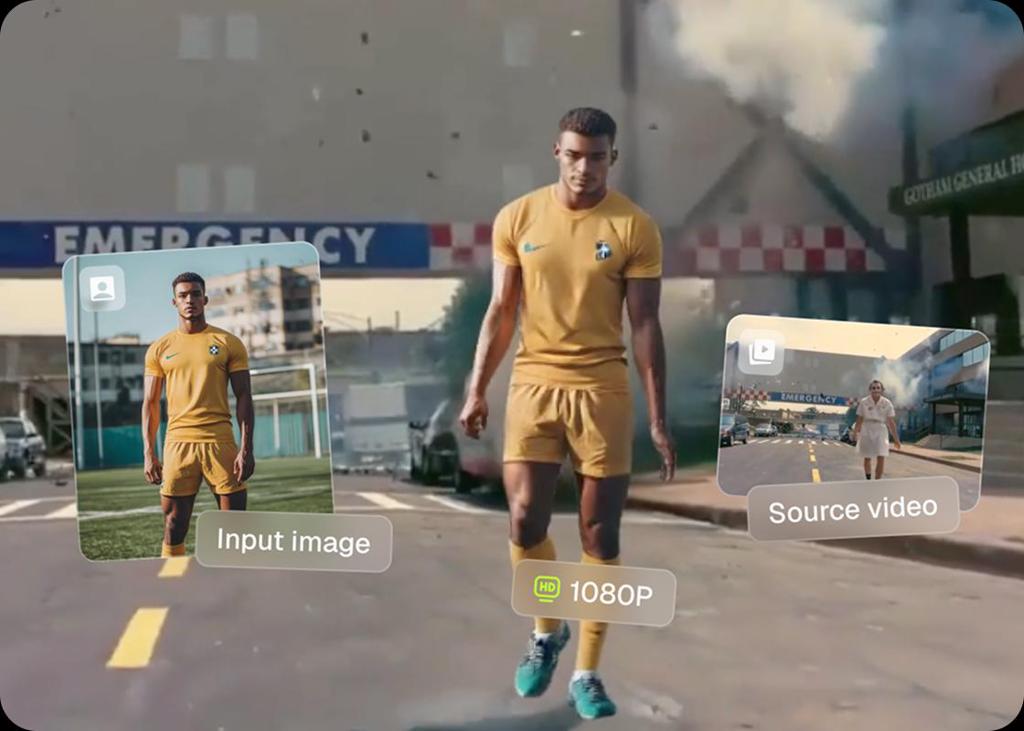
Super simple & faster than other AI tools
With Viggle, creating AI-generated videos from photos is super simple — no need to write long text prompts or describe every detail to make it look good. Just choose a viral video template from our library or upload your own motion clip, and the movement is instantly mapped onto your character. The generation is lightning fast, so you won't be stuck waiting minutes.
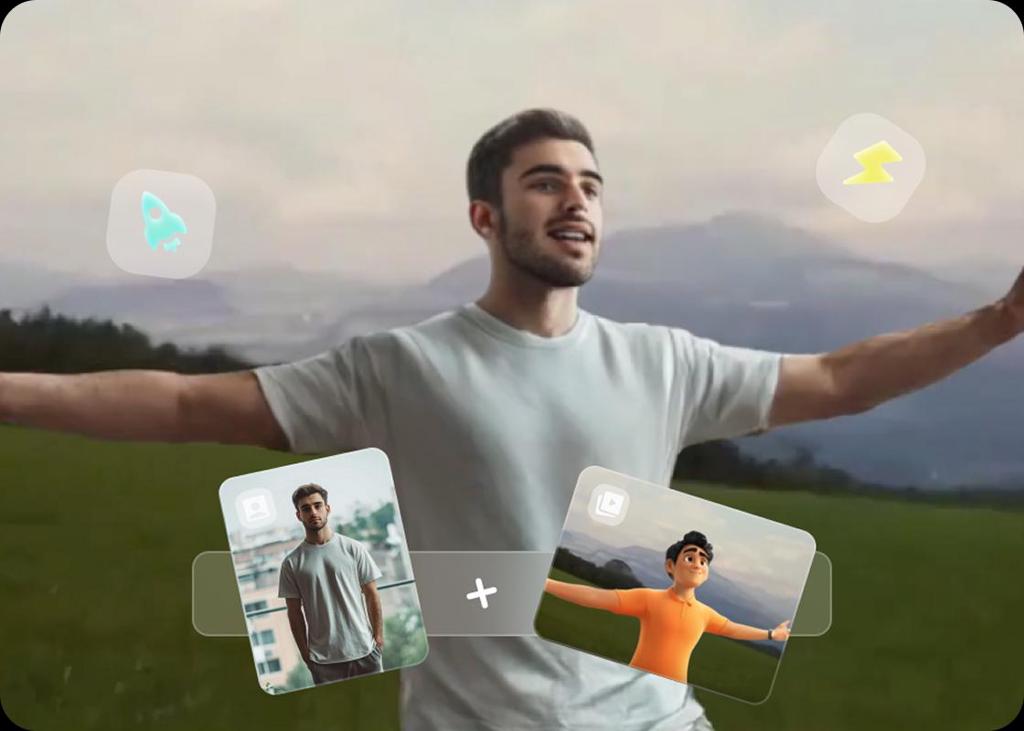
Ready-to-use video templates help you go viral
We've got a massive library of viral videos, memes, and dance clips, all thanks to our amazing community. When you create a video, you can simply pick a template to get started. Templates aren't just fun; they're what spark trends on social media. Just search the trend name in Viggle, swap yourself into the scene, ride the wave of the latest trend and go viral!
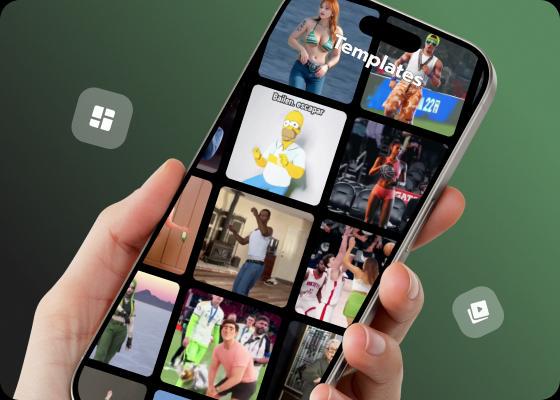
Full Control Over Motion, Even Complex Moves
With Viggle, creators can film motion by themselves or upload a reference clip, then generate a video with their character performing the exact same actions. You get complete control over movement — even high-speed spins, flips, gymnastics, breakdancing, or boxing — the kind of challenging motions most other AI video generators struggle to handle.
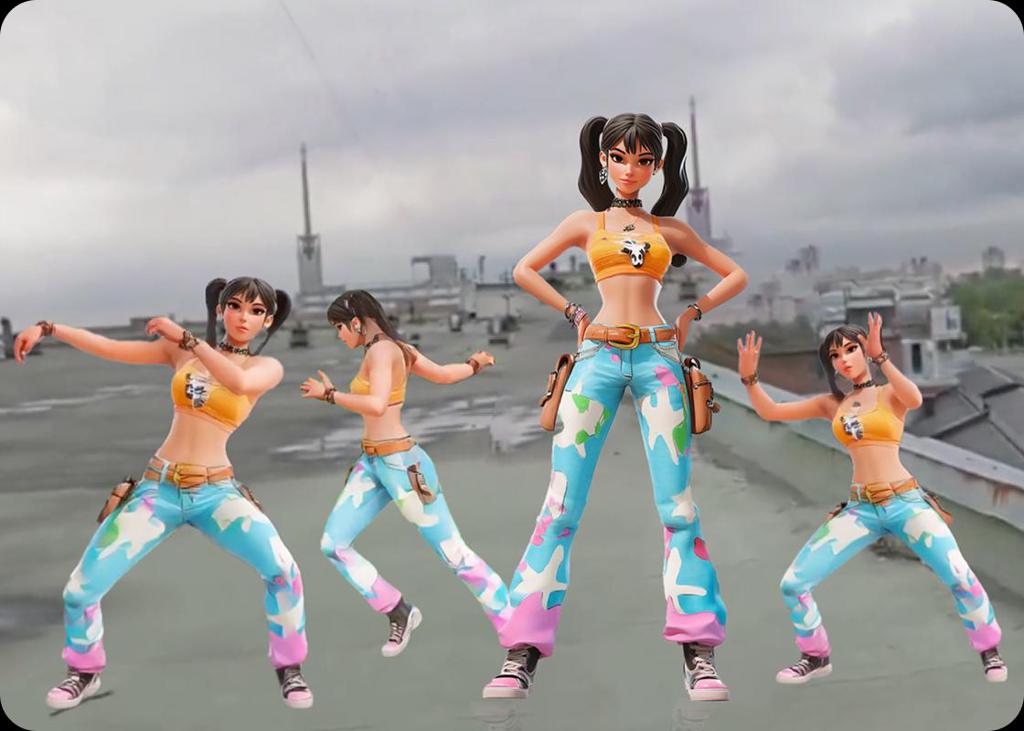
Find More Image to Video Templates
Image to Video AI Frequently Asked Questions
Is Viggle Image to Video AI free to use?
What image resolution and format work best?
How is Viggle different from other image to video tools?
Can I upload my own video clip as a motion reference?
How fast is the video generation?
Does Viggle keep my character looking consistent across videos?
Can I turn an image into video on my phone?
Can I control exactly how my character moves in the video?
Ready to turn images into videos?
Try Viggle FreeTurn Images into Videos
with AI motion control
Create dynamic videos from any image with precise motion mapping. Free to use, no credit card required to start.